
Make Your Whole Apple Setup Dance.
Shortcuts is Apple’s automation app, and it’s already on every device you own. No code, no scripting. Just a common-sense way to make your Mac, iPhone, and iPad do the boring stuff for you. One purchase gets you both guides, the Mac one and the iPhone & iPad one, side by side. One app, every device.
You do the same chores a hundred times a day
Rename a batch of files on the Mac. Text the family you’re running late from your phone. Resize a folder of screenshots. Flip on a Focus mode the second you sit down to write. Small chores, but you do them over and over on every device you own, and each one steals a few seconds and a little attention.
Apple built an app to hand all of that off. It’s called Shortcuts, it’s free, and it’s already on your Mac, your iPhone, and your iPad. A lot of people open it once, see a wall of unfamiliar blocks, and back away.
I get it. The interface looks like programming, and most of us didn’t sign up for that.
Shortcuts isn’t really code. It’s a stack of plain-English actions you drag into order. Once that clicks, you start spotting automations everywhere, and your devices start working for you instead of the other way around.
A trigger, a few actions, and your devices do the rest
Every shortcut works the same way. Something kicks it off, then a list of actions runs in order. That’s the whole idea. Learn those two pieces and you can build almost anything, on any device you own.
One purchase gets you both guides. The iPhone & iPad guide covers every trigger Apple gives you on the go. A tap on the screen, a time of day, a WiFi network, a CarPlay connection, even tapping your phone against an NFC sticker. The Mac guide covers the desktop side. The menu bar, a keyboard shortcut, a Finder Quick Action, and your Stream Deck.
Then you’ll learn the actions. Control settings, send messages, build a calendar event, batch-edit photos, talk to HomeKit, rename files, even run AI. There are dozens, and I walk through the ones you’ll reach for again and again.
By the end, the two examples on the right won’t look like magic. They’ll look like something you could build in five minutes.
Watch a free sample
Want to see the teaching style before you commit? Here you go. A free sample video stitched together from real lessons, with the same clear, walk-a-friend-through-it pace as the rest of the course.
If it clicks, the other 250-plus videos will too. If it doesn’t, no hard feelings.
From your first tap to your own automations
Two full courses, both in order, from the basics to the parts that feel like superpowers. Skip around if you like, or follow along and build as you go.
The Basics, Done Right
Install Shortcuts, tour the interface on Mac, iPhone, and iPad, and build your first one. You’ll learn how it organizes your shortcuts and how the whole thing fits together.
Key Concepts
Variables, Magic Variables, the share sheet, and the simple programming model underneath. The ideas that make everything else easy, taught in plain language.
Every Trigger
Every way to start a shortcut, on both platforms. A time of day, an NFC tap, CarPlay, and your voice on iPhone. The menu bar, a keyboard shortcut, a Finder Quick Action, and a Stream Deck on the Mac.
Every Action
Dozens of videos on the actions you’ll actually use. Calendar, Mail, Maps, photos, weather, Focus, HomeKit, plus Mac apps like Drafts, Craft, Obsidian, and Pixelmator Pro.
Advanced Concepts
When you’re ready for more. Nesting, lists and dictionaries, If conditions, repeat loops, URL schemes, regular expressions, and using AI inside your shortcuts.
150+ Useful Shortcuts
A laundry list of shortcuts you can download and run today. A packing list that builds itself, a running-late message with your ETA, image converters, and a Shortcuts-based Home Screen.
Every device working for you
By the end you won’t just know how Shortcuts works. You’ll have a shelf of automations you actually run on your Mac, iPhone, and iPad, and the confidence to build a new one whenever a chore gets annoying enough.
- A clear grip on triggers and actions, the two halves of every shortcut.
- Automations that fire on their own, from CarPlay and NFC taps to the Mac menu bar.
- A folder of 150-plus downloadable shortcuts, ready to run and easy to tweak.
- The advanced tricks (logic, lists, AI) made simple enough to use.
- A handful of seconds back, over and over, every single day.
“It’s an absolute Godsend”
“If you want to use your iPhone to help you get more stuff done, more easily by using automation then you need David’s new Shortcuts Field Guide. It’s an absolute Godsend!”
“In his new Shortcuts Field Guide, David Sparks updates what was already an excellent course into an even more solid way to learn how to make the most of your iOS devices. David has honed his Field Guide courses into a science, presenting what would otherwise be complex into a set of well-constructed stepwise pieces.”
“…unsurprisingly, it’s really good. If you want to take a crack at learning what Shortcuts can do, this is the place to start.”
“If you get into the kind of automation I offer on this blog, or maybe wish you did if it weren’t for all the coding, then Shortcuts on iOS is either on your radar or should be. And David Sparks has just the thing.”
“All of David Sparks’ Field Guides are gems, but the updated Shortcuts Guide is the Hope Diamond. David explains concepts that at first may seem complex in such a clear and calm manner that in the end, the lightbulb goes off and I say, ‘I got that!’ I am a complete fan, and will continue to study with him forever.”
“David teaches the material in a way that a person with no experience can get started, but move to a place of not only understanding, but efficient. While taking the course I found myself copy and pasting notes from one application to another. I said to myself this is dumb, use a shortcut! In a matter of 2-3 minutes I mostly had it working.”
More from people who took the guides. Hover any card to pause.
“This comes just in time for me. I confess to not knowing very much about Shortcuts. And I really need to learn! There couldn’t be anything better for that than a David Sparks Field Guide.”
“This iOS automation feature still seems like a black box to me, but MacSparky covers in depth in digestible video nuggets.”
“I’m very impressed with the quality and depth of content in the Shortcuts field guide. As someone who is prone to tinkering by myself, I’m so glad I bought this course. Not only does it have encyclopedia-like depth that has saved me countless hours of searching, the video content and organization is something I keep referring to as I expand my skills.”
“I’ve learned so much from David over the years, I had no problem plunking down the course fee. The course was more than worth the price.”
“David Sparks has done it again. He’s just released a brand new Shortcuts Field Guide. I can tell you it’s intense. There is a LOT of great video here.”
“I’ve learned so much from these videos. Indeed, the best way to learn about creating shortcuts is to watch a video in which someone like David shows and explains how everything works. Plus, his course includes lots of sample shortcuts that you can download and modify to meet your specific needs.”
“I am only about halfway through and I can’t believe with how much detail and care MacSparky has laid out and delivered this guide. There are numerous examples for all kinds of apps and situations. The guide is easy to follow and without this guide I would have never been able to fully discover and enjoy the capabilities of shortcuts.”
“Just completed the Shortcuts for Mac Field Guide. Fantastic work, sir. Very much appreciated. I made a few new shortcuts based on ideas from the course. I really enjoyed the interviews with other power users at the end.”
“This is David Sparks’ instructional tour, which begins with the whys and hows of the foundational pieces, then works up to specific features and functions, and finally shows you the advanced triggers and automation power which were never possible before. All along the way, you’ll get to watch how he works.”
Who this is for, and who it is not
This is for you if
You want your Mac, iPhone, and iPad doing more of the work.
- You’ve opened Shortcuts, felt lost, and want a friendly guide through it.
- You do the same little chores on your devices over and over.
- You want to automate the Mac and the iPhone, not pick just one.
- You learn best by watching someone build it and explain why.
- You like the idea of automation but never wanted to write code.
This is not for you if
Be honest with yourself on these.
- You’re on Windows or Android. Shortcuts is an Apple app.
- You’re already a Shortcuts expert who knows every trigger and action.
- You want a finished set of automations and no interest in learning how.
- You’re not willing to spend a few sessions tinkering and experimenting.
Two full guides, start to finish
One purchase, both courses. The iPhone & iPad guide runs 120+ lessons across nine sections, the Mac guide adds 132+ lessons across eight more. Every lesson includes a full transcript and captions, and many come with a downloadable shortcut to follow along.
Basics, Key Concepts & Every Trigger
Install the app, tour the interface, and build your first shortcut. Then the ideas that make everything else click, and every way to start one on the go.
- Variables, Magic Variables, and the share sheet
- Time, alarm, WiFi, Bluetooth, CarPlay, NFC, Focus, voice
Every Action, Advanced Concepts & 32 Shortcuts
The actions you’ll reach for again and again, the powerful stuff made simple, plus a six-part live webinar series and shortcuts on the Watch and visionOS.
- Calendar, Mail, Maps, photos, weather, HomeKit, and more
- Nesting, lists, dictionaries, If conditions, loops, regex, AI
Fundamentals, Key Concepts & Triggers
Build your first Mac shortcut and learn the programming model in plain language. Then every way to launch one on the desktop.
- How Shortcuts compares to Automator and Keyboard Maestro
- Menu bar, keyboard, Finder Quick Action, Stream Deck
57 Action Videos, Advanced Tools & Power Users
What Shortcuts can do on the Mac, the advanced tools made approachable, 120+ downloadable shortcuts, and interviews with the people who automate for a living.
- Drafts, Craft, Obsidian, Pixelmator Pro, plus Base64 and regex
- Rosemary Orchard, Myke Hurley, John Voorhees, Stephen Hackett
One price. Both guides included.
No subscription. No upsells. One purchase gets you the Mac guide and the iPhone & iPad guide, both courses plus their webinar series, all yours.
Both Guides, $99
- Both guides included. Mac plus iPhone & iPad, one purchase
- 250+ video lessons across both courses, 14+ hours total
- 150+ downloadable shortcuts you can install and customize
- Both webinar series, all recorded for replay
- Lifetime access, on any device you own
Check out with Stripe
Secure checkout, taxes handled, receipt in your inbox.
Your invite arrives
A second email lands moments later with your personal access link.
Start building
Everything is waiting in the MacSparky community, webinars included.
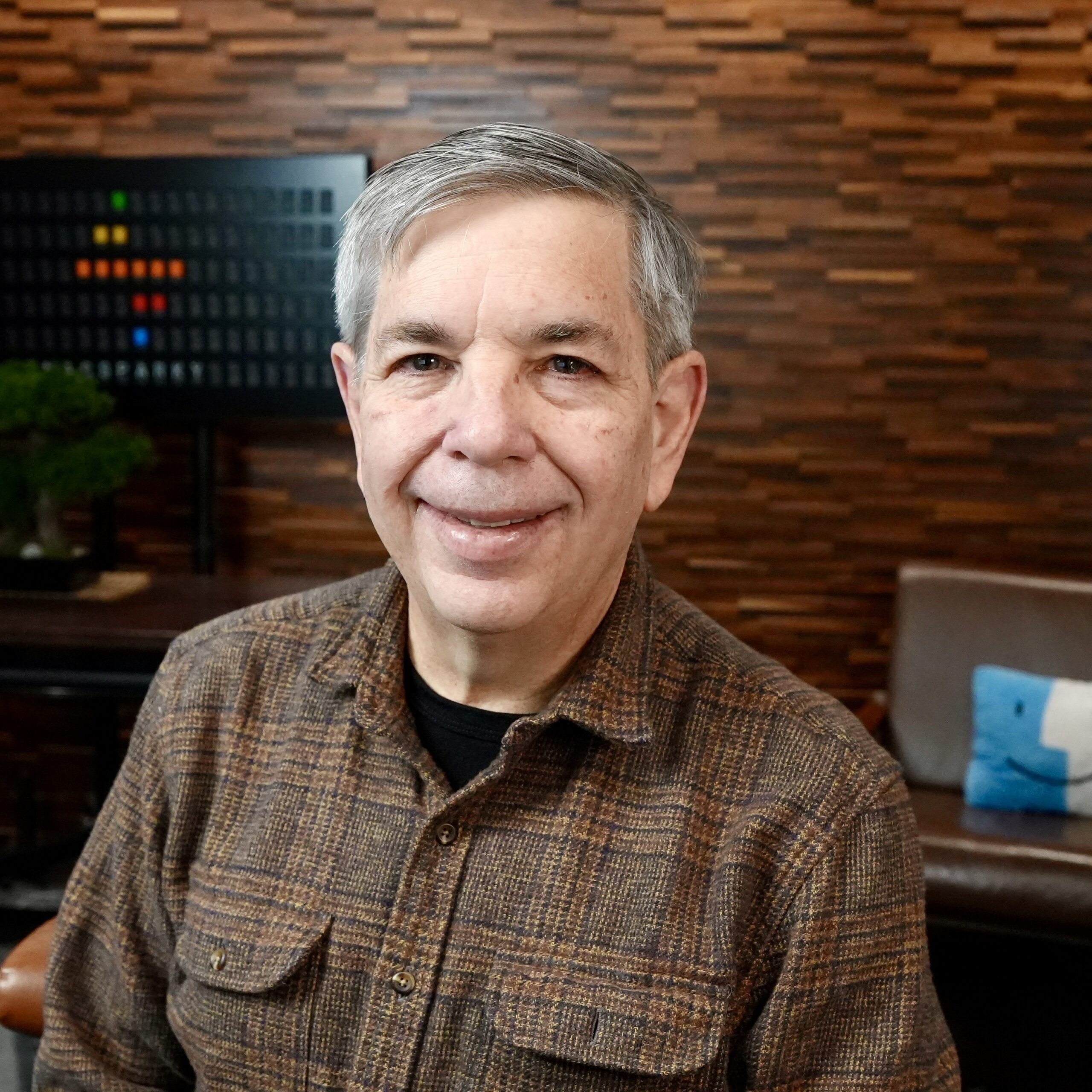
David Sparks
David started MacSparky in 2007 and has spent the years since teaching people to get more out of their technology and their time. He programmed his first computer in 1980 and has been chasing a calmer, more productive way to work ever since.
He’s been hooked on Apple automation since the days before Shortcuts even had its name, building workflows in AppleScript, Keyboard Maestro, and every tool Apple has shipped. These two guides are his complete walk-through of the app across the Mac, iPhone, and iPad, built to take you from confused to confident one short video at a time.
He publishes the MacSparky blog, cohosts the Mac Power Users, Automators, and Focused podcasts, and runs the MacSparky Labs.
Frequently asked
Is this one purchase or two? +
One purchase. It includes both guides: the Shortcuts Field Guide for Mac and the Shortcuts Field Guide for iPhone & iPad. You buy once and get both courses, side by side, in the same place.
Do I need to know how to code? +
Not at all. Shortcuts doesn’t use a scripting language. It’s a common-sense, drag-and-drop approach to automation, and both courses start from your very first shortcut. Anyone can do this.
Which devices does this cover? +
All of them. The iPhone & iPad guide covers Apple’s mobile devices, with sections on the Apple Watch and visionOS too. The Mac guide covers macOS, from the menu bar to Finder Quick Actions. Shortcuts is an Apple app, so there’s no Windows or Android version.
Are the sample shortcuts included? +
Yes. Many lessons come with a downloadable shortcut you can install and run alongside the video. Between the two guides you get 150-plus ready-to-go shortcuts you can use as-is or customize to fit how you work.
What are the webinar series? +
Each guide comes with its own. The iPhone & iPad guide includes a six-part live series on third-party apps, HomeKit, cross-platform shortcuts, AI, and a live Q&A. The Mac guide includes a recorded webinar series with guest power users. Every session is recorded so you never miss one.
How is the course delivered? +
Both guides live in the MacSparky community on Circle. After you buy, you get two emails: a receipt from the payment processor, then an invitation with your access link. Click it, set up your account, and everything is waiting, webinars included.
What’s the refund policy? +
30-day money-back guarantee, no questions asked. If the guides aren’t for you, write in within the first 30 days and you get a full refund.
Make your whole setup dance
The most useful automation tool you’ll ever own is already sitting on your Mac, your iPhone, and your iPad. One purchase gets you both guides. You just need someone to walk you through it, one short video at a time.