
This post is sponsored by Global Delight, makers of Capto.
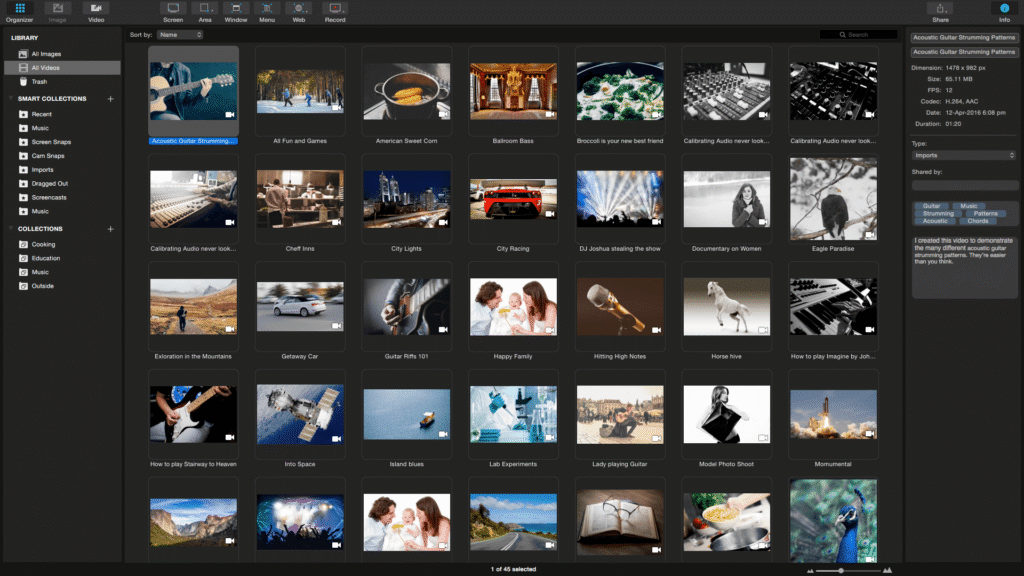
If you’ve ever tried to put together a screen recording to explain a workflow, a feature, or a concept, you know how quickly it turns into a multi-app job. One app to record, another to edit, a third to annotate, something else to share. By the time you’ve bounced between all of them, you’ve usually lost the thread of what you were trying to explain.
Capto does all of that in one place.
It’s a screen recording, capture, and editing app for Mac that handles the whole process without you ever switching apps. You can record your full screen or a selected region. Add a webcam overlay and voice narration while you record. Then edit, annotate, and share, all from within Capto.
The annotation tools are where Capto earns its keep for instructional content. You can add arrows, text, highlights, and blur out anything you don’t want visible. The scrolling capture feature handles full-page and long-interface captures. These are the kind that are awkward to document any other way.
Beyond annotations, Capto has video editing built in. Trimming, cropping, cutting. The basics you need to remove a fumbled intro or a section where you lost your train of thought. Nothing fancy, but it covers what most recording projects actually need.
The use cases are broad. Remote teams walking colleagues through processes, trainers building onboarding materials, educators recording lessons. Any situation where you need to explain something visually and get it cleaned up fast. Capto keeps that whole workflow inside one app instead of five.
If that sounds like your kind of tool, Capto is worth a serious look. It’s available on the Mac App Store and the Global Delight website.
I write about getting more from your Apple gear. If this was useful, go deeper in the Labs or grab the weekly newsletter.