OmniOutliner 6 Now Available on TestFlight

I still remember walking into a Micro Center store sometime in the early 2000s and getting drawn to the OmniOutliner box. Back then, you bought software in a box, and this box was gorgeous with screenshots of what we would later call a Mac-assed Mac app—clearly built to squeeze all the juice out of your Mac. I was intrigued by the idea of a dedicated outlining app.

I took it home and that purchase started a relationship with The Omni Group that continues to this day. Their commitment to building thoughtful, powerful tools for Mac users has kept me as a customer for over two decades. So when I heard OmniOutliner 6 was coming, I paid attention.

What’s New in OmniOutliner 6

The Omni Group is making OmniOutliner 6 a universal app with feature parity across Mac, iPhone, iPad, and even Apple Vision Pro. That means the iPhone and iPad versions can now handle advanced filtering like the Mac version, and the Mac app gets a cleaner workspace with the ability to hide the bottom bar. 

Omni Links is one of the standout additions. You can now link to local and remote documents across multiple devices, plus regular web links. It works with iCloud Drive, Dropbox, Google Drive, Google Docs, and local servers through user-defined “Connected Folders.” The goal is simple: links that just work, wherever your files live.

There’s also a new AI Tools feature that leverages Omni Automation plugins and Apple’s on-device AI model. You can pull information from emails, web pages, documents, or your clipboard, turn it into outlines, and export those outlines however you need: Keynote presentations, blog posts, Obsidian entries, you name it. It’s highly customizable and practical.

OmniOutliner 6 includes plenty of other improvements: an enhanced dark mode, multiple windows on Mac (even for the same project, so you can drag content between them), shareable custom styles, resizable inline attachments, and full AppleScript support.

Try It Today

The Omni Group has opened up TestFlight access for OmniOutliner 6, but spots are limited. If you’re curious about where outlining tools are headed, join the TestFlight here. You can also check out the full release notes if you want all the technical details. I’m looking forward to putting OmniOutliner 6 through its paces. For anyone who relies on outlining in their workflow, this is a significant upgrade.

Quip: AI + Clipboard Manager

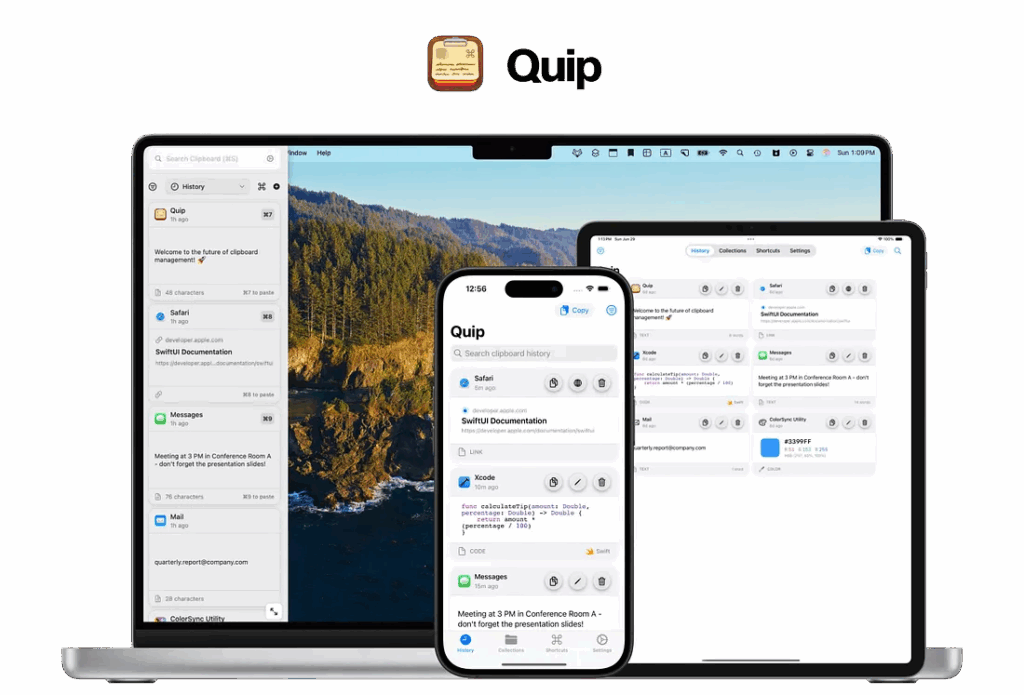
I’m always intrigued by tools that rethink the way we work, especially when they take on an existing app category with some fresh ideas. That’s why I’m happy to see the launch of Quip, a smart clipboard manager for Mac, iPhone, and iPad.

Clipboard apps usually aren’t exciting. They collect your copied text and images, and that’s about it. But Quip caught my attention by incorporating some clever new features: beautiful design, seamless iCloud syncing, robust customization with Shortcuts integration, and—most interestingly—on-device AI.

The addition of AI to clipboard management makes a lot of sense. Quip doesn’t just store your clips; it actively helps organize and retrieve them in context, saving you time and friction in your workflow. Plus, since the AI runs entirely on your device, your data stays private.

You can learn more about Quip and try it yourself on their website.

Alfred Field Guide Launch Discount

The Alfred Field Guide has landed!

Your Mac at the Speed of Thought.

There’s just a few days left on the Alfred Field Guide Launch discount. If you’d like to get the discount, now’s the time.


What you’ll master

  • Zero‑to‑Hero Setup: Install Alfred, unlock Powerpack features, and master core prefs in minutes.
  • Launch & Search at Mach Speed: Apps, files, snippets, clipboard, system controls—all from one hotkey.
  • 35+ Plug‑and‑Play Workflows: OmniFocus, Notes, Drafts, Music, link cleanup—and more.
  • Custom Workflows, No Scripting Required: Visual builder tutorials take you from idea to automation.
  • Pro Integrations: Alfred + Shortcuts, Keyboard Maestro, AppleScript mash‑ups that save hours.
  • Advanced Tweaks: Sync across Macs, design themes, harness Alfred Remote, and uncover hidden gems.
  • Power User Interviews: Hear from Alfred Power Users (and the developers) to learn their favorite Workflows.

Remember to enter ALFREDLAUNCH for 10 % off before Wednesday, May 20 @ 11:59 PM PT. I can’t wait to see what you do with Alfred! 

What people are saying about the Alfred Field Guide…

“Prior to the guide I loved Alfred, now I understand the underutilized powerhouse that it is and that I have at my fingertips.”

– GO

“One video in, I was thinking, “How did I not know that?” Five videos, and it was clear that this Field Guide should be watched by everyone using Alfred.”

Neal L.

Has Apple Lost Its North Star?

Despite the name of his blog, Hypercritical, I’ve always appreciated the measured tone John Siracusa takes when it comes to criticizing Apple. From the outside, it’s always easy to oversimplify analysis of what’s going on in a trillion-dollar company, and John doesn’t do that.

That’s why his recent post, Apple Turnover, stands out for me, in that John makes a simple argument that Apple has lost its North Star and needs a management change. It’s hard to argue with his logic.

Streamline Your Business with Daylite: The All-in-One CRM Built for Apple Users

Transform how you run your business with Daylite – the native CRM and business management platform crafted exclusively for the Apple ecosystem. Whether at your Mac or iPhone and iPad, Daylite brings your client relationships, sales pipeline, and projects together in one elegant solution.

Why Daylite?

Running a small business means wearing multiple hats. Rather than juggling separate apps for your CRM, project management, and sales tracking, Daylite offers a unified workspace where everything connects. Every email, call, task, and note links directly to your clients, projects, and opportunities – keeping your team aligned and your business moving forward.

Power Features That Set Daylite Apart

Smart Contact Management: Never let important client details slip through the cracks. Daylite centralizes all client interactions, giving your team instant access to communication history, preferences, and ongoing projects. Build stronger relationships by having the full context at your fingertips.

Seamless Apple Mail: Integration Work where you already spend your time – your inbox. Daylite’s Apple Mail integration lets you create tasks, schedule follow-ups, and link emails to projects without switching apps. Stay responsive to clients while keeping everything organized.

Dynamic Sales Pipeline: Watch your deals progress with the visual Opportunities Board. Custom pipeline stages reflect your unique sales process, helping you prioritize leads and forecast revenue. Your team stays aligned on deal status and next steps, turning more opportunities into wins.

Project Command Center: Keep projects running smoothly with powerful, flexible tools. Organize tasks, track milestones, allocate resources, and monitor deadlines in one place. Whether you’re managing client deliverables or internal initiatives, Daylite ensures nothing falls through the cracks.

True Offline Access: Your business doesn’t stop when the internet does. Daylite’s offline capabilities mean you can access and update your data anywhere – perfect for productive work during flights, remote client visits, or anywhere else your business takes you.

Native Apple Experience: Daylite is an app made by Mac-loving developers for Mac-loving users. As a true native app, Daylite delivers the performance and polish Apple users expect. The familiar interface lets you hit the ground running, while deep integration with macOS and iOS ensures a fluid experience across all your devices.

Start Growing with Daylite

Experience how the right tools can transform your business. Try Daylite and discover why small businesses trust it to strengthen client relationships, close more deals, and deliver projects successfully.

Ready to streamline your business? Start your free trial today.

Announcing the 2025 Productivity Field Guide

The real solution to productivity isn’t about doing more–it’s about doing less while focusing on what truly matters.

I’m excited to announce the ​2025 Edition of the Productivity Field Guide​. The term “productivity” has become synonymous with quick fixes and hacks, I have a different approach. This guide helps you build a sustainable system that aligns with your deepest values and most meaningful roles.

The journey to identify what truly matters is personal and complex. While you must ultimately chart your own course, you’re not alone. Drawing from both ancient wisdom and modern research, the Productivity Field Guide helps you create a system that works for you.

What’s Included:

The 2025 Edition brings together philosophical principles and practical strategies in our most comprehensive package yet:

  • A 140-page e-book (in PDF and ePub) presenting a unique productivity framework that synthesizes timeless wisdom with contemporary best practices
  • 70+ video tutorials, including 21 new additions, totaling 7 hours of focused instruction
  • Access to an exclusive twelve-part webinar series featuring in-depth explanations, guest experts, and interactive group sessions (all sessions are recorded for your convenience) [Plus Version Only]
  • Complete archive of the 2024 webinar series (12 additional hours of content) [Plus Version Only]

This edition has evolved through even more research and your questions, challenges, and experiences. With this new version, I aim to make this roles-based system even more accessible to everyone.

The Productivity Field Guide empowers you to build more than just another task management system–it helps you create a personalized approach that honors your unique goals while drawing from millennia of wisdom and proven modern practices.

There are two versions of the Productivity Field Guide:

​​Productivity Field Guide Plus Edition $199​​

Productivity Field Guide Standard Edition $99

10% Launch Discount

I wanted to give early customers an extra discount. You can get the Field Guide today with a 10% discount. Just use the time-limited code: “PFG10”

Why the Productivity Field Guide Is Special to Me

The response to this course has been unlike anything I’ve experienced before. I’ve heard from so many people telling me how the Productivity Field Guide fundamentally changed their lives. That’s both humbling and deeply moving.

This isn’t just another productivity course for me – it’s become something far more meaningful. The fact that you’ve chosen to come along on this journey, to trust this system with your time and energy, means the world to me. I love creating this material, I love sharing these ideas, and most of all, I love seeing how they help people transform their lives for the better.

Timing – A Smarter Way to Track Your Time (Sponsor)

Staying on top of your time is crucial–but it’s not always easy. Between juggling client work, creative projects, and the administrative overhead of running a business, time can slip through your fingers. That’s exactly why I’ve been so impressed with Timing. It’s a Mac app that automates time tracking, giving you a clear picture of how you’re actually spending your day.

Traditional time trackers force you to remember to click “start” at the beginning of a task and “stop” when you’re done. Forget to press that button? Your records become a patchwork of guesswork. Timing fixes that. It automatically records how long you spend in each app, document, and website–no manual input is required. The result is a richly detailed timeline of your day, presented in a way that’s intuitive and insightful.

Over time, Timing learns which activities belong to which projects. It uses intelligent rules and machine learning to categorize your work, so you can quickly see how your hours break down by client, project, or activity type. And when it’s time to invoice clients or measure project profitability, Timing’s reports practically build themselves. The app’s built-in reporting tools make it simple to generate clear, professional summaries you can trust.

Timing integrates with your Mac’s workflow without getting in the way. However, it is that you pay for your shoes and whatever apps you’re running, Timing runs quietly in the background, capturing the data you need. The app’s privacy features let you exclude sensitive activities, ensuring you’re only tracking what matters to you.

Timing helps you identify patterns you might never have noticed. Maybe you’re spending more time than you realize on email, or maybe your brainstorming sessions are shorter–but more frequent–than you’d think. Armed with this knowledge, you can make intentional adjustments: block out more time for deep focus, limit unproductive browsing, or optimize your meeting schedule.

If you’ve been frustrated by manual timers or unsure where your day really goes, give Timing a spin. It’s helped me better understand my workflow and given me the data I need to make meaningful improvements. Head over to Timing’s website to learn more, start a free trial, and see how much more productive (and confident) you can be with an accurate view of your time.

Thanks to Timing for sponsoring MacSparky this week!

Home Screen: John Chandler

Today I’m featuring the home screen of web developer, swell guy, and my pal, John Chandler. So John, show us your home screen.

I am a spiritual director and a freelance WordPress developer. I originally did a home screen post almost 15 years ago. Some things have certainly changed since then!

John’s iPad mini minimalist home screen

Why is your home screen so neglected?

David provided many thoughtful questions to respond to, but this one is of my own making. A few years ago, I landed on this idea of having an iPad mini that was minimalist in form, but robust in function. (I just came up with this phrase to apply to it, though, and feel very proud of it.)

I say minimalist in form, because I allow only a handful of key thinking-type apps in the dock — the rest of the home screen is completely clean. If I were to swipe to the next screen over, there would be some widgets, and a few more apps, but most of the time this is the screen I’m working from. When I pickup my iPad mini, it’s usually with a specific purpose in mind, and I don’t want to see something else that will lure my attention elsewhere.

But I say robust in function, because I don’t limit what I can access. I can check Fantastical, Mail, Messages, or Slack. I can open Safari. I can get mired in eBay or Amazon. I can watch an MLB game. All of these are tucked away in the App Library, but I only access them with a tug down on the home screen for the search window.

What’s your wallpaper and why?

This was a stock wallpaper a few iOS releases ago. The imagery of a tree thriving in a stark landscape has a lot of meaning to me in my own personal journey, so I’ve latched on to this image and find ongoing inspiration from it.

What is your favorite feature of the iPad?

I love the versatility of the iPad mini. I don’t try to use it for everything, but I love that I can use it for almost anything.

I seldom use it as a primary device — if I’m doing any kind of work, it’s generally going to be on a Mac. But if I’m going to have coffee with a friend, sitting in a Zoom meeting, or just going to be running some errands, I’ll often have the iPad mini handy with Apple Pencil latched alongside. I prefer it to my phone in case I have need to capture or reference something, and I like the option of being able to handwrite some notes if needed.

What are some of your favorite apps?

NotePlan – I looked at NotePlan a few years ago, but it didn’t stick for me. I was using Things for tasks, and Obsidian as a PKM. But I revisited NotePlan after the MPU episode earlier this year, and dove in headfirst. It wonderfully bridges the gap between mapping out tasks within projects and capturing the daily notes I used to keep in Obsidian. I also dove headfirst into roles and arete this year, and find NotePlan is the perfect app to manage my goals from the 30,000-foot overview all the way down to daily fine-tuning and implementation.

Readwise Reader – I started using Reader right as they rolled out ePub support, and so I read almost everything in Reader — books and articles alike. It captures my highlights automatically into Obsidian. (Truth be told, though, most of the reading happens in the Reader app on a Boox Page.)

Day One – I’ve journaled in Day One since it was first released, and even backfilled some older journal entries. So I have 18+ years of journaling in there. Most of the journaling happens on a Mac, but one of my favorite daily habits is to look back at the “On This Day” section to reflect on who I’ve been and who I am becoming.

Obsidian – Though I pulled my daily notes out of Obsidian, I still engage in Obsidian multiple times per week. It is a deep reference library of book notes, personal research, and my primary app for drafting ideas into longer forms. I also seem to be one of the few that isn’t bothered by the experience of Obsidian on iPad.

Which app is your guilty pleasure?

Ivory – I follow my favorite NFL and MLB teams pretty closely. I slammed the door on Twitter a few years ago, and letting go of my sports feeds was the only challenging part. Now, I’m able to fill that hole by tracking a chunk of sportsbots.xyz accounts in a Mastodon account with Ivory.

If you were in charge at Apple, what would you add or change?

I also have an old 11″ iPad Pro that I use in similar ways, especially when I want to have a keyboard available but not carry a full laptop. If I could change something, I would continue to have the Smart Keyboard Folio available for the newer models. It’s light and streamlined compared the Magic Keyboard cover, so it feels more like the experience of just carrying an iPad. I’m aware some didn’t like the experience of that keyboard, but I have no trouble with it.