Sticking with My M2 Mac Studio: A Surprising Decision

If you listened to the most recent episode of Mac Power Users, you heard me struggling with a decision: should I upgrade my Mac?

As you may know, I’ve been happily using an M2 Mac Studio with 8TB of internal storage. It’s a powerhouse, and it fits perfectly in Endor Studios (my home studio). I’m a big believer in contextual work, and when I sit at my desk, I’m instantly in production mode. My workflow is optimized for this machine, and until recently, I hadn’t seriously considered replacing it.

But then, something happened.

I got a call from an old lawyer friend who, for various reasons, needed a Mac with 8TB of storage. He made me a generous offer (more than Apple would have given me for a trade-in). It was likely the best offer I’d ever get for this Mac, and for a moment I thought: “Well, of course, I should upgrade!”

That’s when things got complicated.

I started looking at different options: MacBook Pro with M4 chip, a new M4 Mac Studio but with a smaller SSD—and I even placed multiple orders, only to cancel them later. That’s not like me. Usually, when it’s time to upgrade, I just do it. But something about this wasn’t sitting right.

At first, I thought maybe I was just being indecisive. But when I looked more closely at the benchmarks between the M2 and M4, it hit me: I don’t actually need this upgrade.

Apple’s M-series chips have fundamentally changed upgrade cycles. In the Intel days, new Macs felt like necessary upgrades every few years. But now, my M2 Mac Studio is still ridiculously fast — it’s a rocket ship — and the M4 is just another rocket ship that flies a little faster. But my M2 still gets me into orbit.

Beyond that, I really love having an 8TB internal SSD. I’m making hundreds of videos a year between the MacSparky Labs and the Field Guides, and this giant drive makes that painless. It allows me to keep all my files on one machine, making my backup and restore process effortless. A new Mac with the same storage would be very expensive, and anything less would force me into an external storage setup, which wouldn’t be terrible, but is also more friction than I currently have. If Apple’s SSD pricing were more reasonable, maybe I would have gone for it; but that’s not the case today.

While the idea of a MacBook Pro was tempting — being able to take my full production machine on the road — realistically, I don’t need that. I already have a MacBook Air that handles my mobile work just fine, and when I’m traveling, I rarely feel the need to do full-scale production. Plus, the MacBook Pro would have added downsides, like louder fans and a bit more hassle in my workflow.

So, after all the internal debate, I came to a conclusion that still feels a little strange to me: I am not upgrading.

That’s not to say I’ll never upgrade. I’m sure at some point, I’ll talk myself into a new Mac. And I totally understand why some folks are jumping from M2 to M4 — Apple’s chips keeps getting better. But for me, right now, my M2 Mac Studio is just too perfect to replace.

So, that’s where I landed. Have you ever found yourself going back and forth on an upgrade decision? This is a new experience for me. 🙂


Subscribe to the MacSparky Newsletter

CrossOver 25 for Painless Mac Gaming

Many Mac gamers are fans of CrossOver, a Mac application that enables you to run native Windows software on macOS. When compatible, it’s an easy way to play PC games on your Mac. I once used it to play a PC-only Star Wars online role-playing game (RPG) on my Mac. I stopped not because CrossOver failed, but because I realized I can’t be trusted with an online RPG.

The latest version, CrossOver 25, introduces several enhancements, including the ability to play popular PC games like Red Dead Redemption 2. It’s built on Wine 10.0, incorporating over 5,000 improvements that benefit many applications. Notably, CrossOver doesn’t require a Windows license, making it a straightforward solution for running Windows apps on your Mac.

If you’re using a Mac and are missing your PC games, CrossOver 25 might be the answer you’re looking for.

CrossOver can also run PC productivity apps, too. I have a friend that uses it to run an ancient Windows version of Quicken. (Long story…)

MacSparky.com Moves to a Dedicated Server

After all my recent whining about Artificial Intelligence kneecapping traffic to small publishers, I got a little surprise from WordPress…

Turns out, traffic to macSparky.com is way up — so much so that it’s been exceeding the limits of my previous hosting plan. As of today, MacSparky is running on its very own isolated server at WordPress.

The site is now running faster than ever before, and it’s the most stable it’s ever been. I’m genuinely excited about this change and grateful for all the readers who continue to stop by, especially in this strange, AI-distorted era of the web.

Thanks for being here. More good stuff will keep coming your way.

The Big Terminology Update

Today Terminology, Greg Pierce’s word app, gets a major update. It’s a complete overhaul, marking the most significant update since its original release in 2010.

Terminology is a powerful and extensible reference tool that goes beyond a standard dictionary. It starts with an offline, WordNet-based dictionary and allows you to seamlessly browse and configure online resources for deeper research.

With support for customizable AI prompts, enhanced note-taking, and multiple-term lists, it’s designed for writers, researchers, and language enthusiasts who want more control over their word exploration. The latest update modernizes the app with SwiftUI and integrates an actively maintained word database.

With this release, Terminology also introduces a Pro tier. Subscribers gain access to features like custom resources, multiple-term lists, and advanced note-taking capabilities.

At launch, there’s a limited-time pricing offer:

• $4.99 per year as a renewable subscription

• $19.99 for a one-time lifetime unlock or Terminology.

Those prices will eventually get increase.

New Medication Tracking App: Capsule

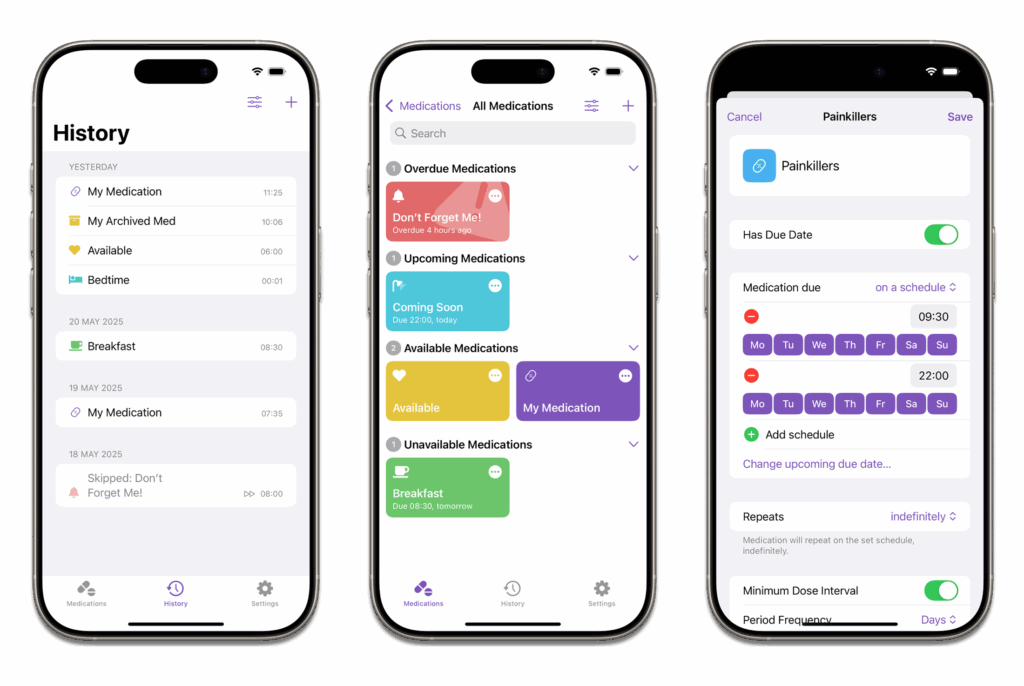
Rosemary Orchard and the gang at Snailed It Development have a new medication tracking app, Capsule. It’s built with exactly the kind of attention to detail you’d expect from Rose and really steps up a notch over Apple’s built-in medication tracking. It has plenty of options including repeating reminders, and multiple dose intervals. Version 1 includes widgets, Shortcuts support, and multiple icons.

If you looking to track your meds with panache, check it out.

Mac Power Users 789: Back to the Mac, with Matt Gemmell

Author Matt Gemmell joins Stephen and me on this episode of Mac Power Users to talk about using an iPad as his only comptuer for eight-and-a-half years and why he recently switched back to the Mac.

This episode of Mac Power Users is sponsored by:

  • 1Password: Never forget a password again.
  • Ecamm: Powerful live streaming platform for Mac. Get one month free.
  • DEVONthink: Get Organized — Unleash Your Creativity. Use this link for 10% off.

Sparky’s Case for Focus Modes (And a Short Poll)

One of the best features Apple has added in recent years is Focus Modes. I use them every day across all my devices, and they have become an essential part of how I manage my attention, my work, and even my personal life.

At its core, a Focus Mode is a filter between you and the rest of the world. Instead of being bombarded with every notification, email, or message the moment it arrives, Focus Modes let you decide what gets through based on what you’re doing. They are powerful and easy to automate, so you don’t have to think about it.

My Favorite Focus Modes

I have the usual Work and Personal modes, but I also get more specific:

  • Podcasting Mode: Filters out everything but my co-host and essential podcasting tools. My Home Screen also changes to show time zone widgets for my co-hosts.
  • Production Mode: Prioritizes video editing, screen recording, and keeps distractions to a minimum.
  • Deep Work Mode: Only lets in the people who truly need me, no social media, and a Home Screen optimized for writing and thinking.
  • Disneyland Mode: This one is special. The moment I step near Disneyland, my devices enter a mode that aggressively limits work interruptions so I can enjoy the time with my family.

Automating Focus Modes

You can turn Focus Modes on manually (I usually do it from my Apple Watch), but you can also automate them. In addition to location (like the way I turn on My Disneyland mode), you could also trigger Focus Modes by time of day, when you open certain apps, or even based on whether you’re at home or work.

More Than Just Silence

What I love about Focus Modes is that they don’t just filter notifications. They also change my device’s environment:

  • Custom Home Screens: Each mode gets its own set of widgets and apps. For example, in work mode I see the Slack app we use at Relay where when I’m in personal mode, I have my personal appointments and the weather available.
  • Custom Watch Faces: A quick glance at my Apple Watch instantly tells me what mode I’m in. For example, any blue face represents work mode and green represents personal mode.
  • Shortcuts & Automations: Turning on a Focus Mode can launch apps, set timers, or even change settings like screen brightness or sound output.

The Biggest Mistake with Focus Modes

Most people don’t use them. Maybe they seem complicated, or maybe they feel like too much work to set up. But here’s the thing: you don’t have to get them perfect from the start. Start with a simple one (like a Work or Personal mode), see how it feels, and tweak it over time.

If you’re not using Focus Modes yet, give them a shot. I think you’ll be surprised at how much more in control you feel. Also, we recently did an episode of the Mac Power Users on Focus Modes where I explain my Focus Mode strategies in more detail.

I’m trying to get my arms around how many folks are using Focus Modes. If you have time, could you please fill out this poll on the topic? If you’ve got more thoughts on Focus Modes, the poll also includes an optional open question. I’d love to hear what you think.

MacWhisper 12: Now with Automatic Speaker Recognition

Jordi Bruin’s MacWhisper continues to deliver the goods. Just released is version 12, which adds automatic speaker recognition, making an already great transcription tool even better.

I’ve been using MacWhisper on the back end for a lot of the content I publish here at MacSparky, and I’ve been very happy with the results.

In a lot of ways, Artificial Intelligence is a mixed bag, but when it comes to voice-to-text transcription, it’s a pure win. The ability to quickly and accurately convert spoken words into text saves me time and improves my workflow.