A bunch of you have been asking about that Vestaboard in Endor Studios. Here are all the gory details…
This is a post for MacSparky Labs Members only. Care to join? Or perhaps do you need to sign in?

A bunch of you have been asking about that Vestaboard in Endor Studios. Here are all the gory details…
This is a post for MacSparky Labs Members only. Care to join? Or perhaps do you need to sign in?
It’s time for the latest Lab Report from MacSparky, covering this week’s Apple news and updates…
This is a post for MacSparky Labs Members only. Care to join? Or perhaps do you need to sign in?
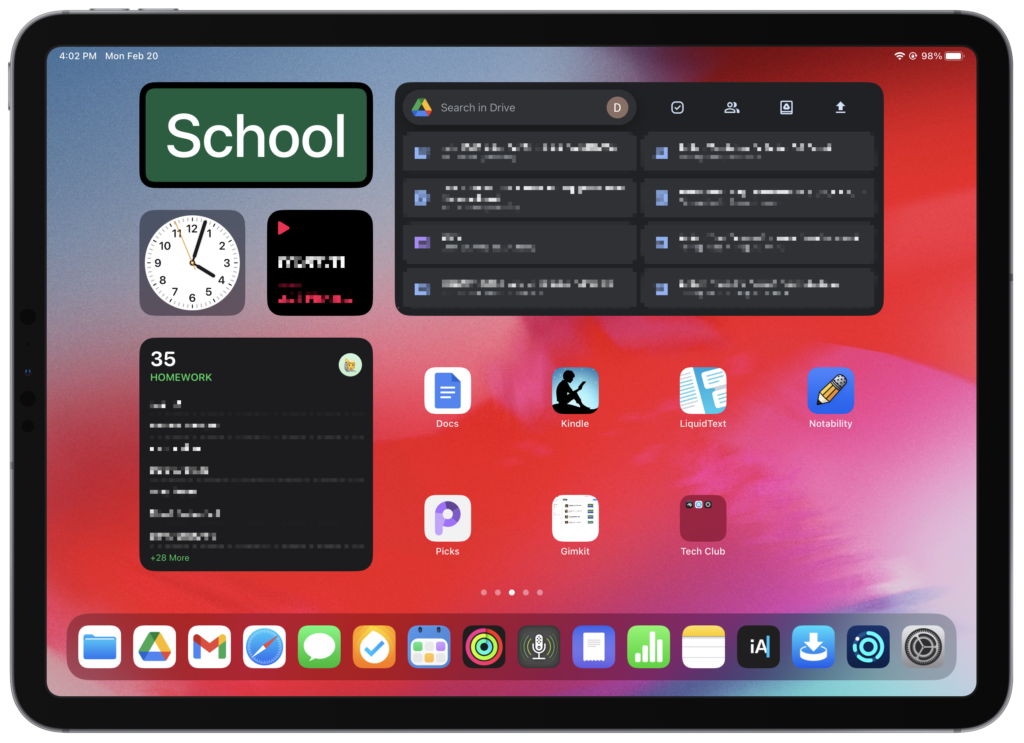
This is Daniel Schwartzberg. He is a teacher, he host of the podcast Creative Consumption, and he’s a swell guy. So, Daniel, show us your Home Screens.
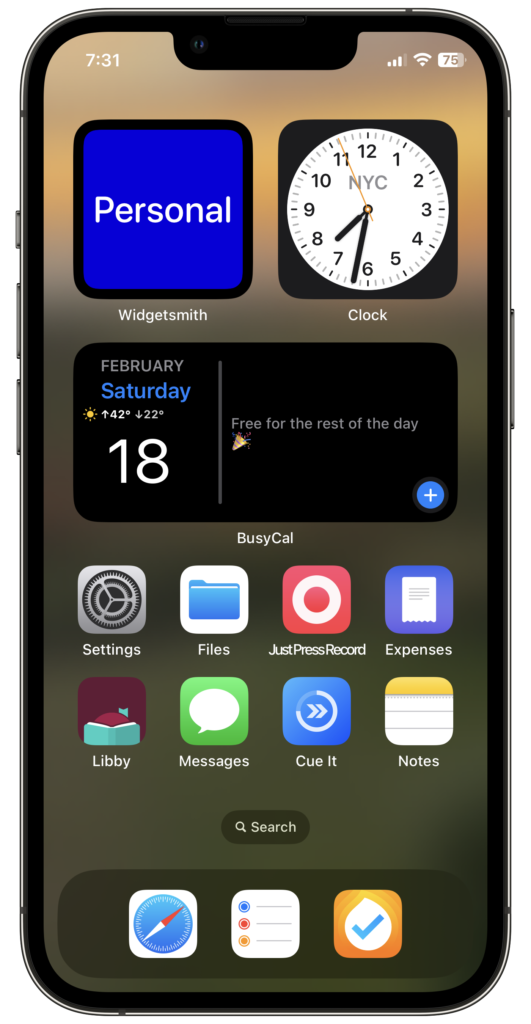
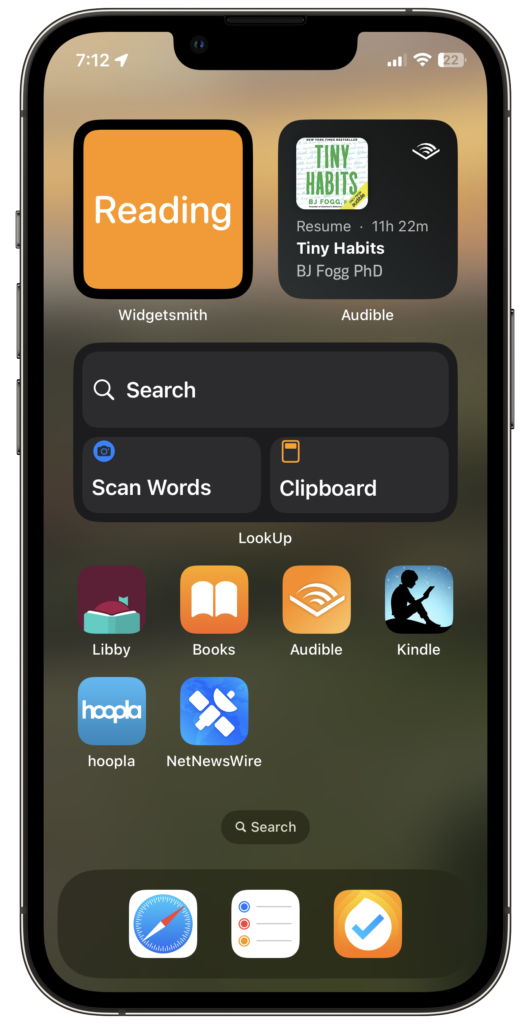
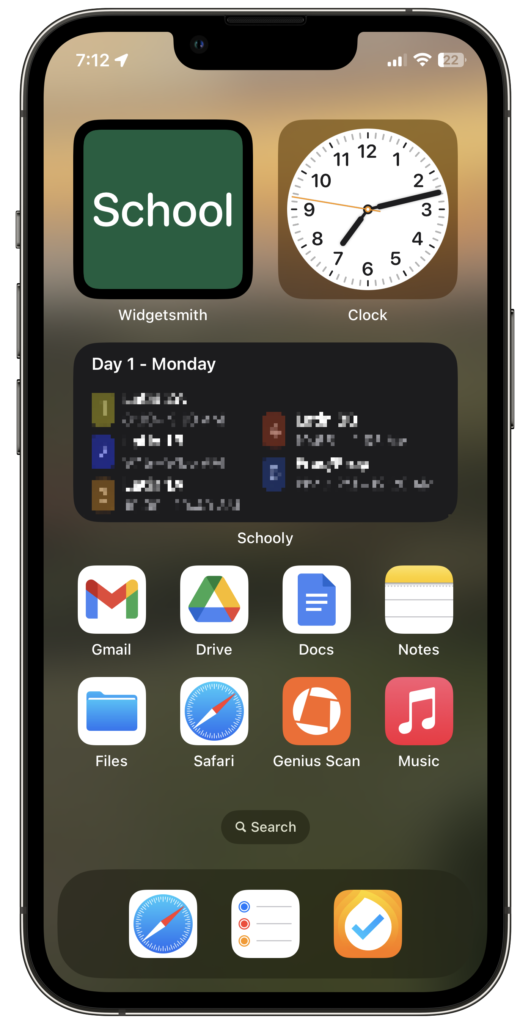
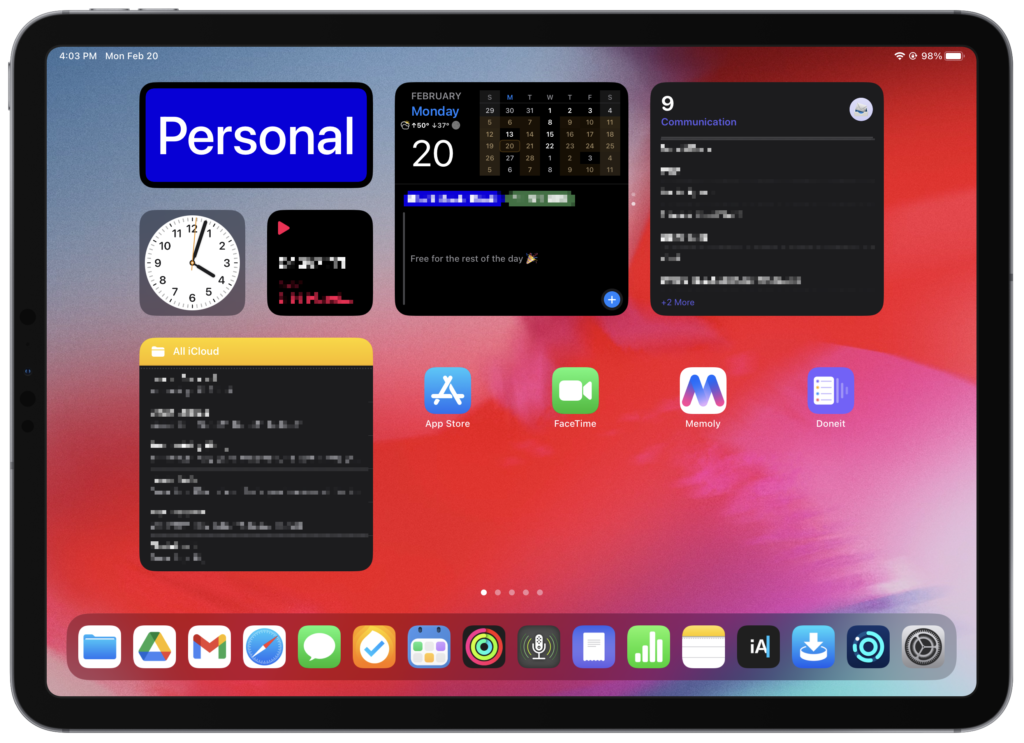
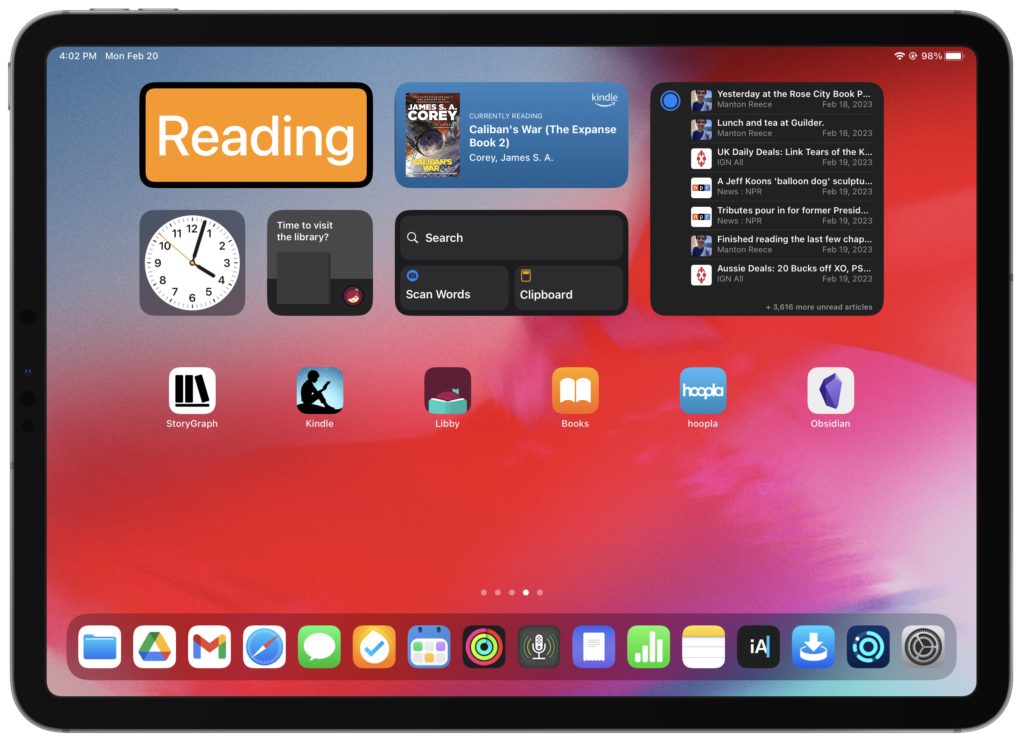
Right off the bat, when making this post, I realized that the way I’ve used my Home Screen has substantially changed over the past couple of years. I used to fill my Home Screens with folders and icons and utilize it as a launchpad for all my apps. Now, I search for and launch most apps with Spotlight on my iPhone and iPad, and because of that, I’ve set up my Home Screens to give glanceable information, offer quick access to essential apps, and to help nudge me into a certain mode.
Relatedly, Focus Modes have become a major part of my Home Screen philosophy this past year year, especially since Apple started allowing users to tie specific Home Screens to specific Focuses (Foci?) in iOS and iPadOS. Using that feature, I’ve been able to construct an individual Home Screen for each of the major parts of my life, and the three most common: Personal, Reading, and School.
I also like using color as a general reminder of context, and it’s part of how I set up my Calendar app and something I think about when assigning colors to tasks, lists, and backgrounds. That’s partly why I’ve dedicated the top left portion of my iPhone and iPad Home Screens to a color-coded Widgetsmith text widget with the name of whatever Focus Mode/context I’m in.
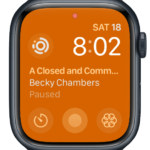
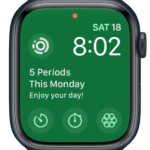
Even though that widget arguably isn’t as “functional” as an app icon or other more interactive widget type, the benefit I derive from having that textual reminder really drives home the reason that I’m using the device and how I’d like my intention directed at that time. I try to accomplish a similar effect by setting the color of my Apple Watch face to as close a match as I can get with Apple’s standard color watch faces.
This is a tough one for me, and may sound odd, but even though I love using it, Overcast is the app that best fits this category for me. I love podcasts, especially because, like probably a lot of people, I view them as a medium that I can engage with to stay informed about topics that interest me while still being having my hands free to be productive in other ways (cooking, folding clothes, grocery shopping, those kinds of things). But within the past year or so, I’ve realized that I spend so much time listening to other people on podcasts (I’m actually afraid to look at Screen Time stats) that I’ve stopped taking as much time to reflect on my own thoughts and make my own things.
So I’m trying to cut down on podcast listening, and one of the big ways I’ve done that is by removing Overcast from my dock, where it used to have a prime position. I can still search for the app in Spotlight, and still have a rotation of podcasts I follow, but that move out of the dock has been a big help, and I’ve also been establishing other time boundaries (e.g., no listening on weekday mornings before I go teach) and building other habits to replace and complement podcasts (music, reading, audiobooks).
This one’s a toss-up. I depend on a bunch of apps that I call “infrastructure apps” (Hazel and Keyboard Maestro come to mind immediately), but in terms of iOS/iPadOS specifically, the two apps that help me the most in literally “producing” work are Just Press Record (JPR) and Ferrite.
JPR started out as an occasionally helpful tool in college, when I wanted to record some thoughts and easily transcribe them later, but it’s become essential in the past two years for my work as a teacher. At the school where I teach, the faculty write reports for all the students they teach, and when it comes to drafting those reports, I find it easier to dictate a first draft rather than write it.
I tend to overcorrect if I type it first. That’s where JPR, and its Apple Watch app, comes in. I have a fairly long commute to and from my school, and so when it gets to about a month before our reports are due, I’ll use that time to spew a bunch of thoughts into a voice file on my watch in Just Press Record. Then I transcribe those files on my iPhone and transfer them to my computer, where I can clean up whatever flubs the transcription made and use those text files as the basis for each report. On top of that, I also love to use the app to dictate any kind of message that I need to send, and to draft posts of episode show notes.
Since Ferrite‘s a stalwart in the audio-editing arena, and a bunch of great tech writers like Jason Snell have put out content explaining all the cool things it can do, I won’t give a long overview here. All I’ll say is that I’ve used it as my DAW almost every day for the past four years and it’s a tool I couldn’t operate without. A few things that engender my devotion:
There’s a lot more, and the recent release of Ferrite Pro 3 provides some awesome things, too. I have found (maybe because of the recent major update) that the app’s been slightly more buggy for me than I’m used to, but hopefully those things get ironed out, because when it works, it works beautifully.
Since I’ve already talked about my must-have productivity apps, I’ve left those off here, but these are a few that I just love using, and which often fill specific but frequent needs. Also, this list could be much, much longer.
Genius Scan – This app is a must-have for me. The school where I teach doesn’t use a comprehensive learning management system (LMS) for students to submit work online, and paper is the primary medium for student materials, which can be a great thing in a lot of ways, but hard organizationally. Almost all my assignments and assessments are hard copies, or students write them in their own notebooks. Enter Genius Scan. After a couple of months of figuring out how to get all the bits and bobs set up correctly, I was able to use Genius Scan’s Auto Export feature combined with its Naming Templates to kind of cobble together my own personal LMS.
When a student hands me a paper, or I go around to collect assignments, I take out my phone, start up a new scan (which is extremely easy because of the context-menu action accessible via long press from my “School” Home Screen), and then tag the document in a way that tells Genius Scan to export it to an iCloud folder. Then, on my iMac, Hazel watches that folder and automatically sorts each assignment into a folder corresponding with the class section and date. It’s fantastic – highly recommend.
Camo – Even with Apple’s inclusion of Continuity Camera in iOS 16 and Ventura, I’ve been using Reincubate’s Camo for years to hook up an old iPhone as a webcam, especially when tutoring and having Zoom meetings. The app’s always been reliable, fast, has a bunch of in-the-weeds customization features, and I just don’t feel like changing my setup since it’s so great.
Text Case – Awesome utility for text transformations. I’ve set up a couple of custom flows, and it’s especially useful when copying Latin text from a picture I’ve taken of a textbook or commentary so I can include it in a tutoring document. Very specific-use case, I know, but even with general transformations, it’s great, and it’s available on iPhone, iPad, and Mac. It also has solid Shortcuts support!
Libby and hoopla – Libraries are awesome! Books are great! And these two apps let me browse, download, and read/listen to a huge variety of books either in the app itself or via the Kindle app. Nothing better.
Schooly – I think I first read about this app on 9to5Mac, but Schooly is a nifty, easy-to-use app for helping me with class schedules. I’ve also tried the assignments feature, and even though it hasn’t yet stuck with me, it’s a nice inclusion to have and I may try to use it more in the future. Where Schooly’s most handy for me is its Home Screen and lock screen widgets the developer has added – I can see both my upcoming class, as well as where they’re located. Also, the developer has been very responsive whenever I’ve reached out with questions, which I something I always appreciate.
Timemator – This is a timetracking app I’ve used in the past and (am trying to) use more often lately, and the developers have included a selection of widgets in one of their more recent updates. The one I use is the “Timer Widget,” which launches the app and optionally toggles a current timer for a task. It’s more of an aspirational choice than one I depend on, but I’m trying to be more diligent about tracking my time to see exactly how it’s being spent, and it’s a good reminder to have the widget there on my iPhone/iPad screens. I also have it as the top left complication on every Apple Watch face.
Widgetsmith – I don’t utilize it for anywhere near all the cool things David Smith has included, but I do love the simple text widget that I’m using (related to the “Focus Modes” section above.)
Clock – It’s weird, I know, but I just like having a clock app on my Home Screens.
BusyCal – I’ve been using BusyCal as my calendar app for a few years, and really appreciate how the developer keeps improving it across all platforms. They’ve added multiple widgets on iOS and iPadOS, and I have two different ones included in stacks on my “School” and “Personal” Home Screens – the “Events List” and “This Week” widgets.
Top of the list here is Shortcuts, and as an extension of that, Toolbox Pro. I’ve dabbled in making shortcuts for time tracking using Timemator, quick transaction logging, and adding new assignments to Schooly. I’ve also created a few longer “set-up” automations on the Mac that include Shortcut actions, like adding reminders and activating Do Not Disturb (DND). Overall, though, I have far more ideas of Shortcuts I want to make than actual Shortcuts themselves.
I’m intrigued by the idea of creating launcher shortcuts on my Home Screen, something I’ve heard David, Rosemary, and a host of others people speak about in podcasts and on their sites. I can imagine it would be great to have just one icon that would allow me to perform multiple actions or start multiple processes, and I can personally think of several use cases in that vein. But I have a hard time shaking the feeling that the initial time investment to set those things up would be substantial, even though I realize that a.) it wouldn’t take nearly as long as I think, and b.) I would probably get the time back in the long run.
Anyway, hope springs eternal that the day will magically become 32 hours long (or more realistically, that I’ll finally convince myself that those kinds of Shortcuts won’t take as long to make as I think they will), and I’ve started keeping a list of automations that I want to set up, so that I’ll have some starting points.
I’m still figuring out which app or apps to use for project management. Reminders was my go-to task app for ages, and still is for the most part. But things have recently gotten much busier in terms of the scope and amount of things I’ve been doing, which is due to a combination of house projects that I’m trying to get sorted and an increase in my work as a podcast editor and Latin tutor outside of school. Reminders and BusyCal used to be completely sufficient for me for planning my time, but in the past year, I’ve wanted a better bird’s-eye view of each ongoing project I have, and those tools haven’t quite provided the oomph I need.
I’m currently trying the app Firetask, and there are elements of it that I like, but I’ve never worked with a Getting Things Done (GTD) system before, so that’s also been a learning curve, as well. I’ve been listening to the audiobook to see if that helps give me a better idea of how to use the app and augment my overall organization system. My gut feeling is that an app as extensive as OmniFocus would be more than I need, but I’m tempted to give it a try.
Also, if anyone has recommendations for a budgeting app (ideally with Shortcuts support), I’m all ears!
With the important caveat that I am in no way a software developer, and that I am positive making any sort of changes to fundamental parts of iOS must take a huge amount of effort, time, and consideration, I still have to ask: why is rearranging anything on the Home Screen still such a terrible experience?? It’s great that Craig let everyone know “jiggle mode” is apparently official Apple terminology, but if there’s one improvement I genuinely believe could make everyone cheer during WWDC23, it would be an announcement that they’re improving the UI experience of setting up and changing Home Screens.
Everything that jumps to mind all relates to the Continuity features Apple’s implemented over the years (Universal Clipboard & Control are both real timesavers).
Thanks, Daniel.
Here’s the video from the March Meetup. It was a fun time, where we discussed Apple Hardware and my Vestaboard. There was also an extended and insightful discussion of AI…
This is a post for MacSparky Labs Level 3 (Early Access) and Level 2 (Backstage) Members only. Care to join? Or perhaps do you need to sign in?
There’s an interesting story right now about the latest Galaxy S23 and the moon. A person on Reddit made a blurry picture of the moon and then took a picture of that blurry image with his Galaxy S23, which used its particular, highly trained AI, to make it a clear and beautiful picture of the moon. That resulting picture wasn’t so much the same moon the photographer saw so much as it was an AI-generated picture of what the S23 computer brain expected the moon to look like in that particular photo.
I don’t really know how to feel about that. If I took a picture of my wife, would I want the picture of that lady that I love as seen through my lens in the moment or the idealized version of her the AI generates on the phone? That’s kind of a loaded question because, with all of the computational photography going on in all smartphones (iPhone included) you never really see exactly what the lens saw anymore. To me, the tipping point is where the image capture no longer matters. It appears the S23 is at that point when you shoot the moon.
I enjoyed this article from Dr. Drang about the robot-created AppleScript. I think AppleScript will be one of the most difficult languages for AI models to write because it was created to make it more human-readable, and that makes it quirky.
The other thing about AppleScript that will likely trip up the AI models (it certainly trips me up) is the modular nature of the language. Every app that implements AppleScript uses its own dictionary calls. From one app to another, these dictionaries vary greatly, and every script involving a new app requires a bit of spelunking.
Good luck with AppleScript, Robots, you’ll need it.
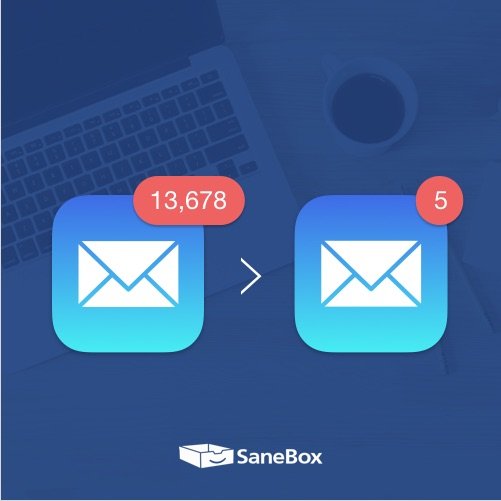
Email can get overwhelming for all of us. It just keeps coming. And the more emails you reply to, the more people write you back, generating even more email. When you get down to it, however, for most of us the truly daunting thing about email is sorting the wheat from the chafe. Where are the five email messages that truly matter in that inbox of 267 items? That’s where SaneBox, this week’s MacSparky sponsor, will save you time.
Those newsletters and other unimportant emails you receive that you don’t need to read right away? You can stop them from interrupting your flow. With your training, SaneBox’s A.I. will analyze your email history. After learning what’s important to you, it ensures that only important email stays in your inbox. Those pesky emails that don’t require your immediate attention? You can get a daily digest from SaneBox at the time of your choosing and deal with them later.
Tidy up your inbox and let SaneBox deal with the clutter by sending them to your Sane folders. If you’re not quite sold, you can try it out for yourself. For MacSparky friends, SaneBox has a special offer. You can sign up for a free trial, and you’ll get a $10 credit you can use towards a SaneBox subscription. Welcome to email sanity, it’s that simple.
On this episode of Focused, business lawyer Mark Metzger joins me to talk about false urgency, the power of having a coach, and getting back on the wagon when life happens.
This episode of Focused is sponsored by:
I’ve heard from several readers and listeners about Whisper Transcription, a new native Mac App that is an AI transcription tool… This is a post for MacSparky Labs Level 3 (Early Access) and Level 2 (Backstage) Members only. Care to join? Or perhaps do you need to sign in?
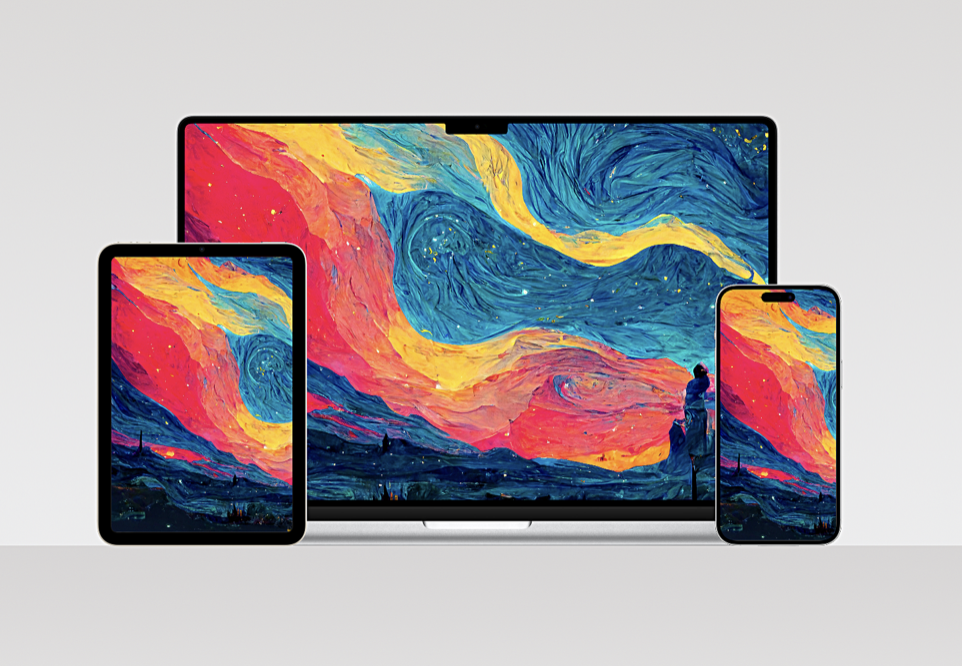
I’ve seen Basic Apple Guy’s wallpapers popping up all over my feeds for a while now. Most recently, he released a beautiful Starry Night / Big Sur mashup. So I finally visited the site, and there is a mother lode of classy wallpaper there for you. While you are there, make sure to leave a tip. This was a lot of work.